Monday, 13 March 2017

Format USBPendrive Using CMD

Steps To Format USB/Pendrive Using CMD:
Step 1. First of all, connect USB/Pendrive flash drive to your Computer.
Step 2. After connecting, check the letter assigned to the USB flash drive (whether it’s J: or G: or H:). Because you will have to specify the drive name in the format command while formatting pen drive.
Format Pendrive Using CMDFormat Pendrive Using CMD
For the example: When I connected the Pen drive to my PC, I checked the drive name and it was H: as shown in above screenshot.
Step 3. Next, press Win + R keys together to open the Run dialog box and type cmd then press Enter.
Format Pendrive Using CMDFormat Pendrive Using CMD
Step 4. After the press, Windows command prompt will appear on your screen. Type the following command in command prompt and press Enter:
format /q /x H:
Where in the format command:
The q parameter stands for quick format
The
 x parameter forces the selected volume to dismount if required.
The letter “
H” is the drive name. Please, replace the letter “H” with your drive name.
Format Pendrive Using CMDFormat Pendrive Using CMD
Just after pressing Enter, it will display a message like “Insert new disk for drive H: and press ENTER when ready…”
Step 5. So, simply press the Enter button. Now the process of formatting your Pen drive or USB flash drive will be started. You need to wait until 100% is completed. Now, you will be able to see a message like “Initializing the File Allocation Table (FAT)… Volume label (11 characters, ENTER for none)?” which means format has been completed and waiting for your confirmation.
Format Pendrive Using CMDFormat Pendrive Using CMD
Step 8. So just press Enter again. Once, the pen drive formatting process is completed you will see format complete message along with other details as shown below. That’s it!
Format Pendrive Using CMDFormat Pendrive Using CMD
Method 2: 
Step 1. Here you need to press Win + R keys together to open the Run dialog box and type cmd then press Enter.
Format Pendrive Using CMDFormat Pendrive Using CMD
Step 2. Now you need to enter the command “format x:” where x is the location of the device.
Format Pendrive Using CMDFormat Pendrive Using CMD
Step 3. Now it will ask you to insert the Pendrive. If you have already connected it to your computer, simply hit “Enter”
Format Pendrive Using CMDFormat Pendrive Using CMD
Step 4. Now in the very next step, you have to wait for the process to complete. This process takes long to format.
Format Pendrive Using CMDhttp://waseemtricksinfo.blogspot.comFormat Pendrive Using CMD


Thus, you can see how simple is to format pen drive using command prompt in Windows PC. By this method, you can easily format your Pendrive with command prompt with the simple cmd trick. And this method will make your Pendrive faster and will remove all the viruses like malware and trojans etc from it. Hope you like the post. Don’t forget to share it with your friends and leave a comment below if you have any related query with this topic.
http://waseemtricksinfo.blogspot.com

15 Ways To Secure Your Facebook Account From Hackers


#1 Create Strong Password
15 Ways To Secure Your Facebook Account From Hackers
Always create a strong password of your account. As there must not be a password which gets easily figured by the hackers. As there is a hacking technique called dictionary attackswhich used to compare your password with every English word. So if you have the password in simple English words then it will get easily tracked by the hackers so always use complex passwords like “techviral!@#$%“.
#2 Confirm Your Mobile Number
Confirm Your Mobile Number
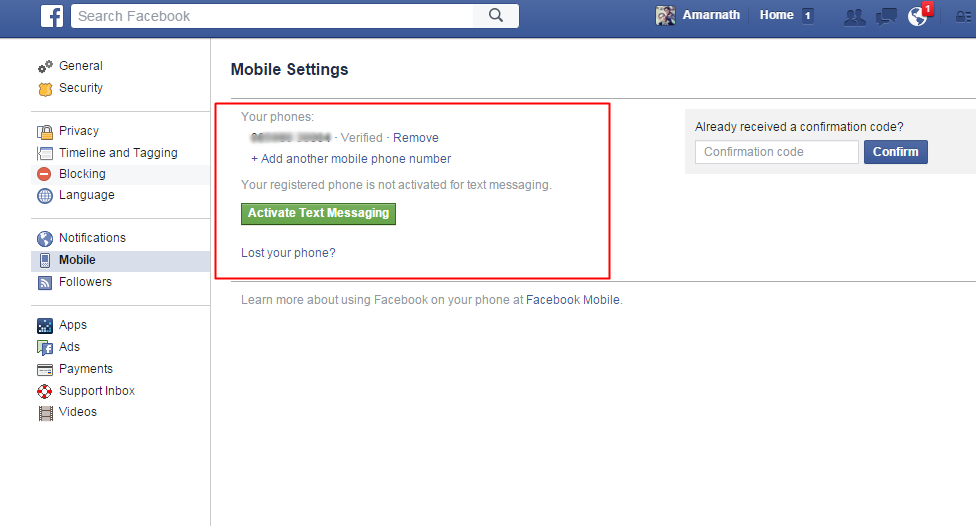
Confirm your mobile number in your facebook account. This will help you to reset your password when you lose it. And you will also get the notification about the change of password in your mobile.
#3 Email Address
Email AddressEmail Address
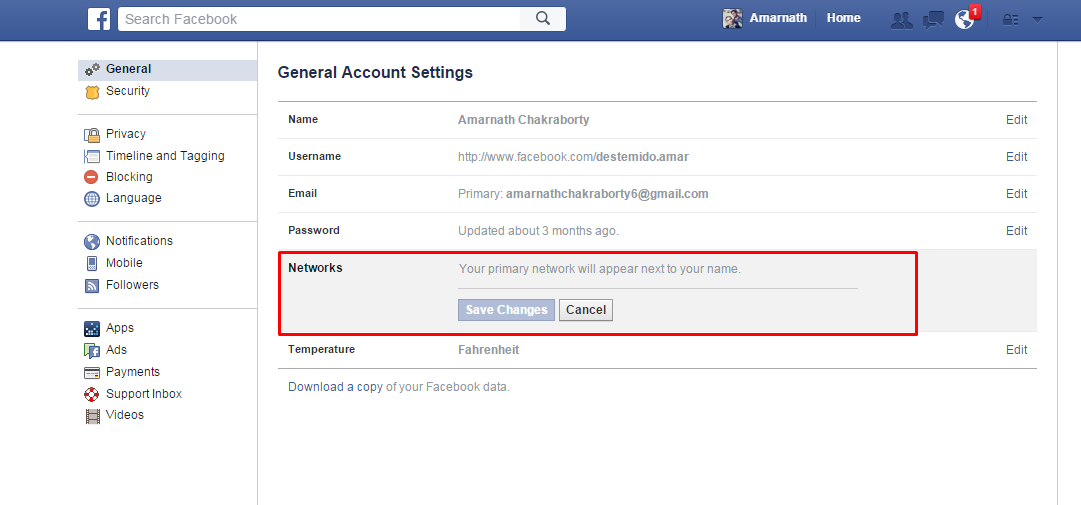
·         Always keep your email id hidden from everybody for that go to my profile, and personal information, and let your id be visible to only you.
·         Also, remove all your email addresses, and change the primary one as the one which is known to you only.
·         Now for additional safety, use the secure browsing and send an email when logged into from another browser option active in your account.
Also Read: 7 Things I Bet You Don’t Know About Facebook
#4 Activate ‘Login Approvals’
Activate ‘Login Approvals’
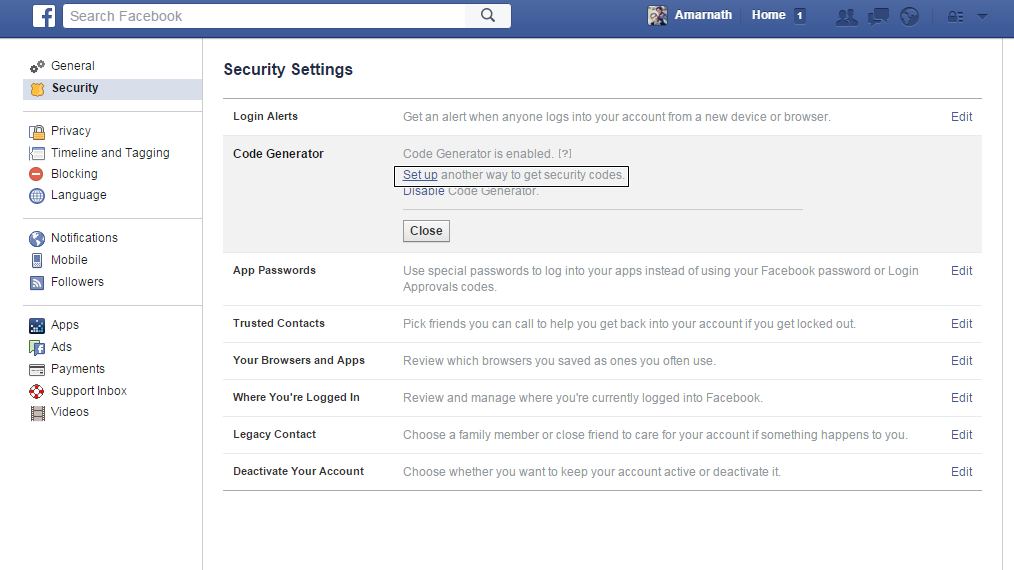
Social Engineering AttacksIn Facebook, login approvals is an extended security feature and it will require you to enter a security code each time you try to access your Facebook account from unrecognized devices. So to activate Login Approvals, go to Account Settings > Security, look for Code Generator and click on the Edit button and setup the ways to get codes for login.
Also Read: How to Stop Facebook & Google From Tracking You
#5 Try to access Facebook from Your computer only
Try to access Facebook from Your computer
If you access Facebook from your own computer or smartphone then you can be assured that your account is not going to be hijacked by any malicious software. According to the recent survey, it is proved that accessing Facebook from your own computer can reduce the chances of hacking.
#6 Social Engineering Attacks
This could involve any trick that could fool you into giving out your personal details and also from your security questions in general discussion to emails that could be a spam or somebody from Facebook requesting you to change your personal Facebook details. These all are spam emails, so be aware of these emails.
Also to prevent yourself from being fooled by such tricks, stay cautious all the time and also keep security question to which answers would remain restrained to you only. Facebook will never ask you to change the password so all the related emails can fool you and your facebook account can be in danger.
#7 Disconnect Previous Active Sessions
Disconnect Previous Active SessionsDisconnect Previous Active Sessions
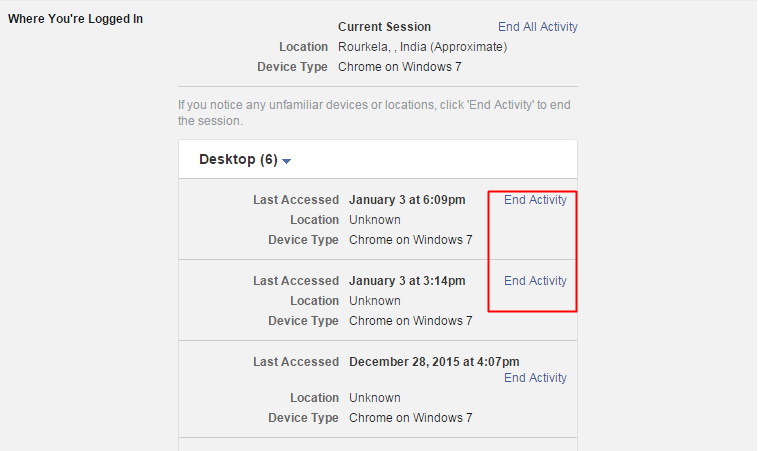
Facebook provides a very helpful feature to track active sessions.You can see that by going Account Settings > Security page, look for ‘When You Have logged in and  kill all the unusual activities from this. This will log out your facebook account from that device which you have killed.
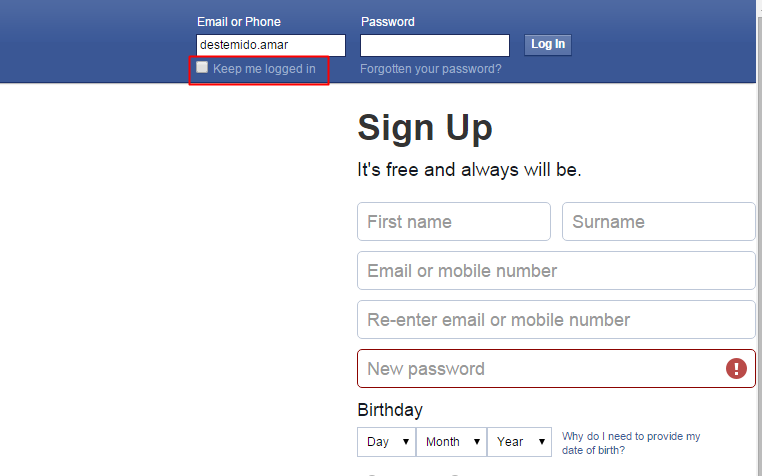
#8 Don’t ‘Keep Me Logged In’
Don't 'Keep Me Logged In'Don't 'Keep Me Logged In'Don’t ‘Keep Me Logged In’
When you are at the login screen of facebook there you see an option Keep Me Logged In, Don’t keep it check as this will remain your account logged in that device and your account can be easily accessed by any other who is able to use the device, so also, remember the option Kep Me Logged In to be unticked each time you log in.
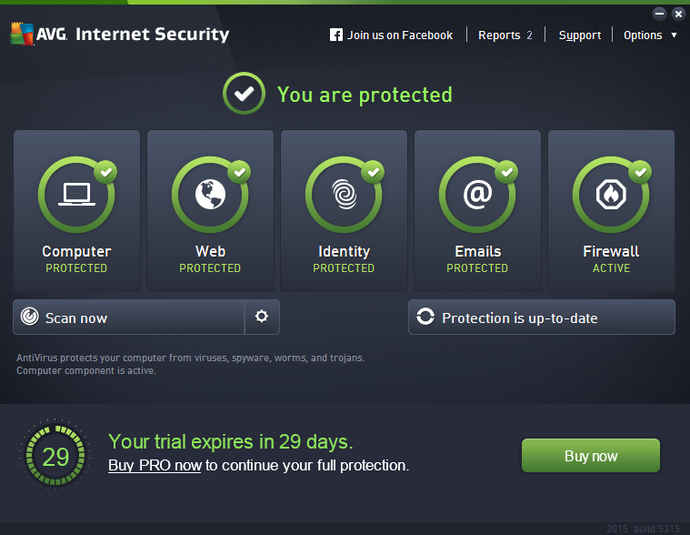
#9 Having an Anti-Virus and Internet Security
Having an Anti-Virus and Internet SecurityHaving an Anti-Virus and Internet Security
Some people accidently click on links that can download malware. So having a good security system in PC ensures the privacy and security of your online browsing. Therefore, make sure to scan your whole computer at least once a week.
#10 Check your Web browser for spyware
Check your Web browser for spywareCheck your Web browser for spyware
Check whether you have installed any extensions or plugins in your web browser that looks suspicious, because sometimes extensions or plugins can compromise your social media accounts. Google chrome is the most secure and powerful web browser available on the internet right now.
#11 Phishing Attacks
Phishing AttacksPhishing Attacks
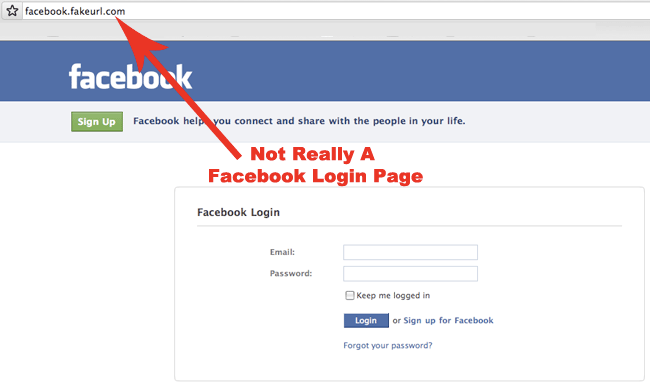
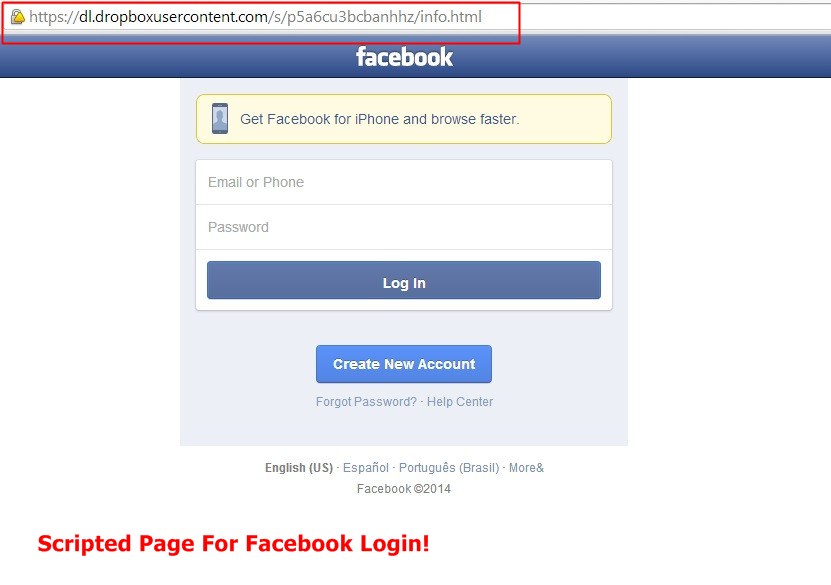
These are more common attacks by hackers to a user. In this attack, hacker sends a link to a user and the link will open the exactly same looking facebook page but the only difference is that when you enter you facebook ID and password that will not go to facebook it will be sent to the hacker. So don’t open such links.
#12 Keyloggers
KeyloggersKeyloggers
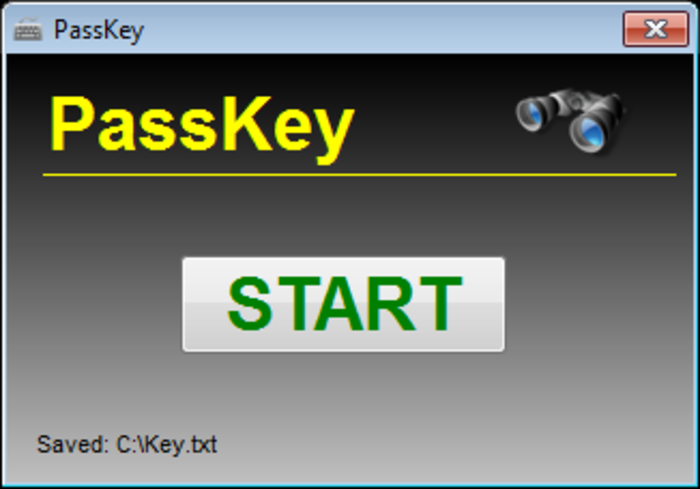
Keylogger is a virus that can be installed on your computer by a cracker, and keep a track of all the activities happening in there and it can be done remotely, and even more easily if the cracker has personal access to the computer. Also, this keylogger will record all your keystrokes with screenshots.
#13 Incognito
IncognitoIncognito
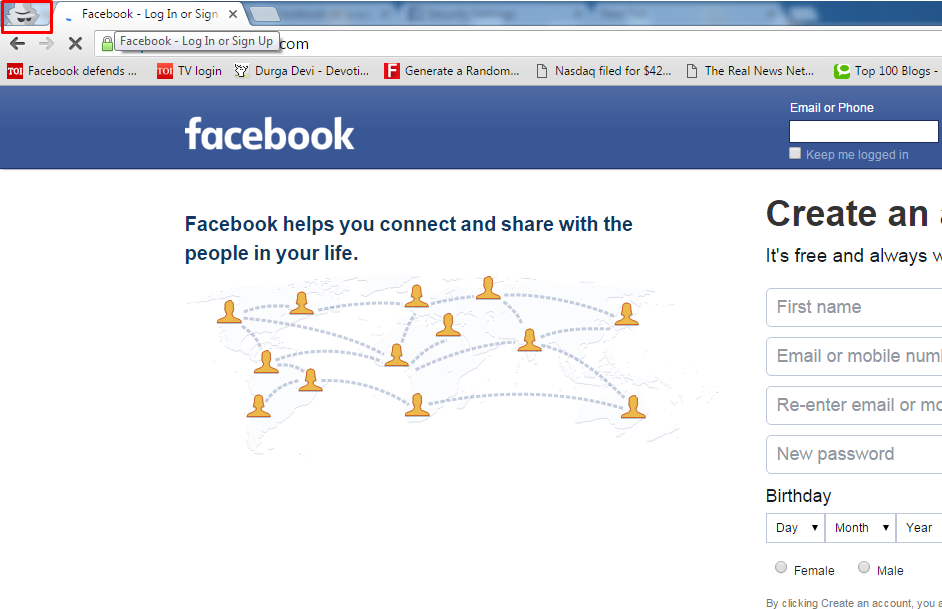
When you are using the account in public such as in the hotel or in café use private mode or Incognito as it will prevent any cookies or web history from getting stored. But if you do not find any option then delete all the cookies and web history when you log out.
#14 Use Secure Connection
Use Secure ConnectionUse Secure Connection
Facebook account should be set to use the secure connection that is denoted by HTTP before the URL address and this can be set by going to settings>General> browser connection. You should always use VPN for login.
#15 Always Logout
Always LogoutAlways Logout


Don’t ever forget to hit the logout button before you leave facebook. To be honest! Many people don’t even take it seriously to hit the logout button before leaving facebook. If you don’t log out of your account, then hacking your ID is simple if there is potential for some else to use the same computer as you.

15 Quick Ways To Boost Up Your Slow Windows PC

15 Quick Ways To Boost Up Your Slow Windows PC
#1 Closing System Tray Programs
Closing System Tray ProgramsClosing System Tray Programs
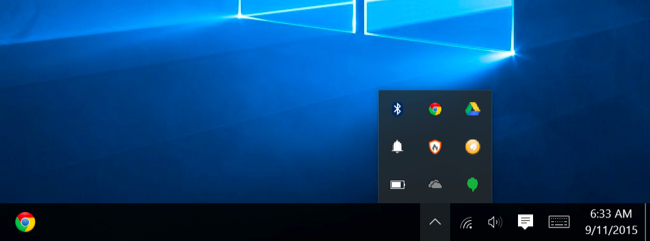
Usually, most of the applications running on your computer appear in the system tray or you can say notification area. If you spot any of the application running in your system tray that is unnecessary then you could simply close it! This will surely make your PC run faster.
#2 Uninstall unwanted Programs
Uninstall unwanted ProgramsUninstall unwanted Programs
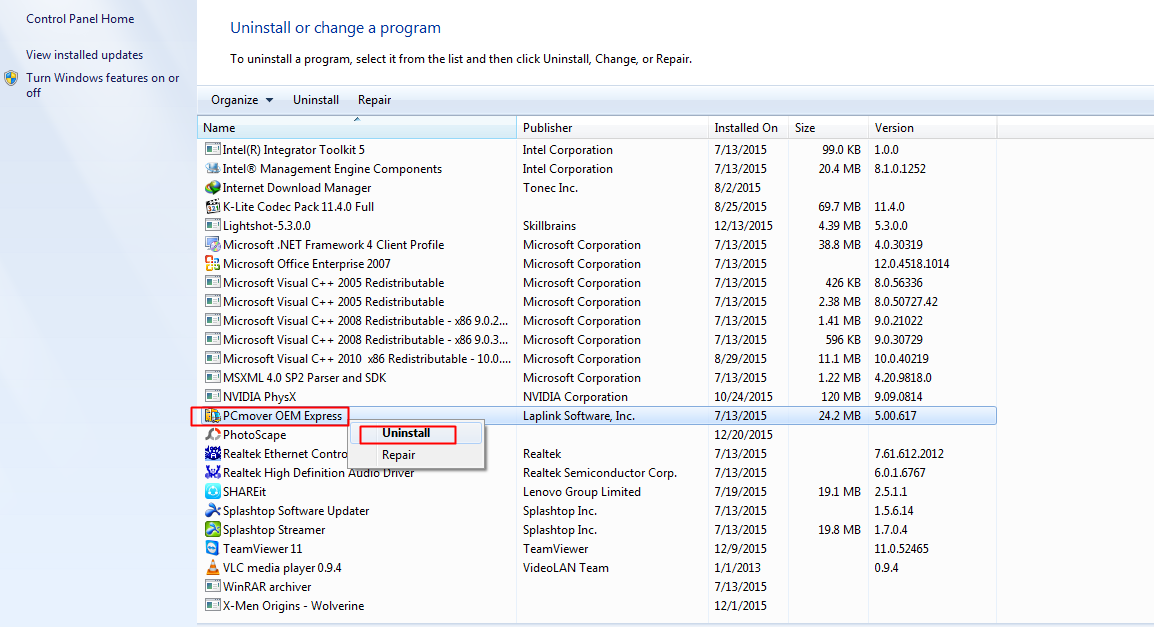
Sometimes programs get installed on our computer without our command and these programs can affect the PC speed to a high extent so better is to uninstall this unnecessary program. By uninstalling these programs, the disk space gets free and this will speed up your computer. For uninstalling, just go to the control panel and select Program and Features. Now uninstall the programs which you don’t want on your computer.
#3 Disabling Startup Programs
Disabling Startup ProgramsDisabling Startup Programs
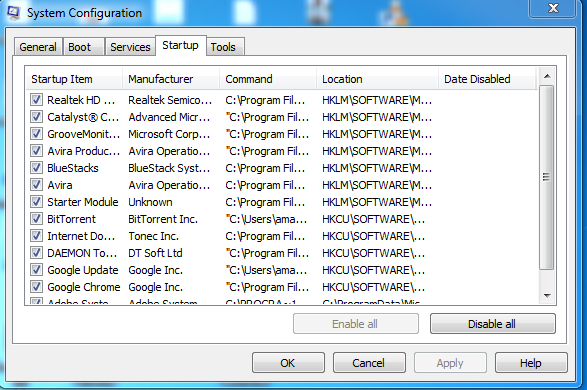
Many PC users claim that their PC starts very slow, the main reason of that is there are so many startup programs which are structured to start when a window is started. These are called as startup programs. To increase the Computer Speed, just disable the startup programs. For this, you need to dial “msconfig” without quotation marks on RUN command and disable the program of your choice. This will incapacitate all the startup programs and your PC will get boosted.
#4 Run Disk CleanUp
Run Disk CleanUpRun Disk CleanUp
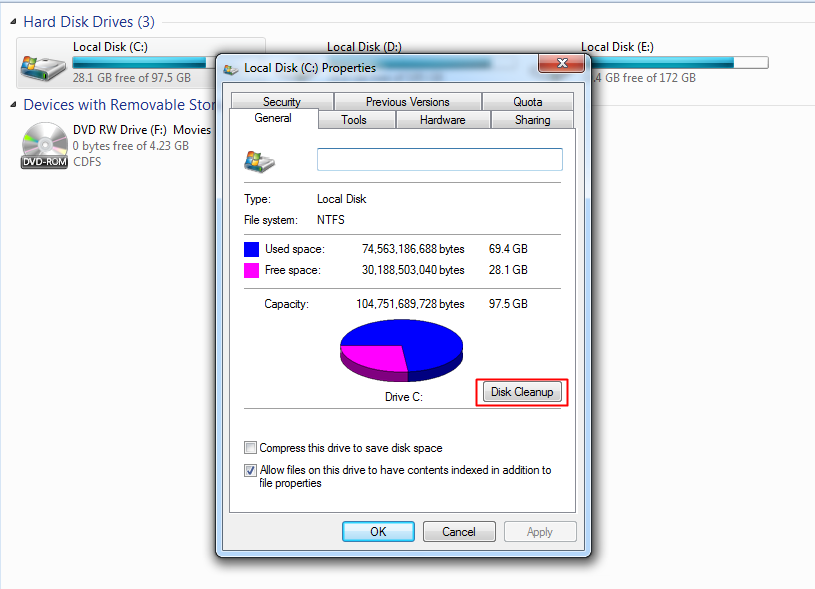
Disk CleanUp cleans all the unwanted cache of a drive. After cleaning, PC gets faster. To cleanup, the disk cache just right clicks on the C drive and on General tab select Disk Cleanup option and clean all the cache.
#5 Using third Party Cleanup option
Using third Party Cleanup optionUsing third Party Cleanup option
There is also some software available on the internet to clean the disk cache. For example CCleaner. This software cleans up the unwanted space of your computer and cleans all the unwanted files including cache. And by this PC speeds get faster.
#6 Stop Processes from Task manager
Stop Processes from Task managerStop Processes from Task manager
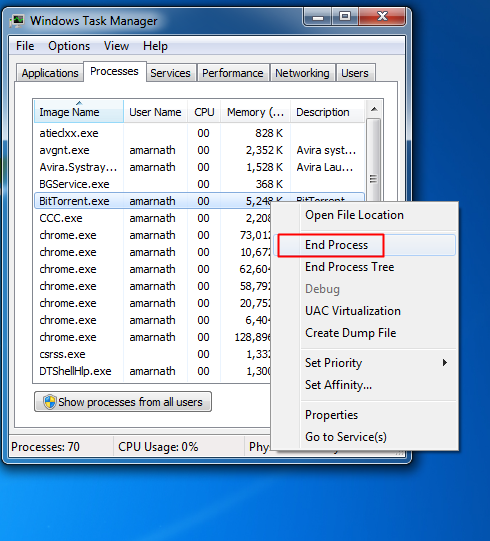
Task manager is a very useful feature of windows. You can track each and every process. If any process gets to dump on your computer or hangs your computer just open the task manager by pressing ALT+CTRL+DELETE. In this, you can stop any unwanted process by right-clicking on a process and end Process it.
#7 Disable unnecessary extensions on Google Chrome
Disable unnecessary extensions on Google ChromeDisable unnecessary extensions on Google Chrome
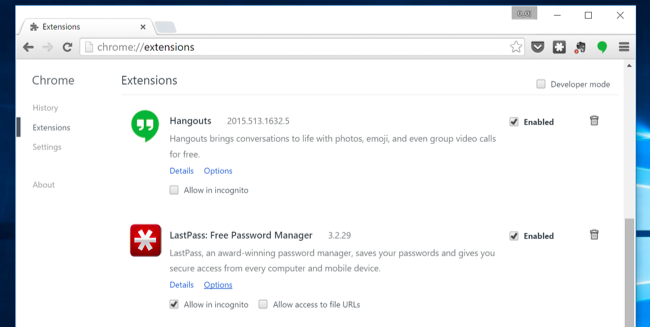
If you noticed that your Google chrome is running slow! Then you could try disabling the extensions. Recent studies revealed that Google chrome consume much RAM compared to another browser. Opera browser could be a handy choice if you are looking to free up some RAM.
#8 Uninstall Bloatware
Uninstall BloatwareUninstall Bloatware
Bloatware is pre-installed apps that come with your device. You can uninstall apps that you no longer want! You will find lots of bloatware in your program list. You can try some premium uninstaller to remove stubborn apps.
#9 Turn Off Unused Window Features
Turn Off Unused Window FeaturesTurn Off Unused Window Features
When you install Windows 7, Windows 8 and Window 10 with default settings then you install multiple unused features and services in your system, which normal user never uses these programs and services in Windows operating system. But you can turn off these unused features. Follow below steps:
·         Open Control Panel and Click on Uninstall a Program. On the left side, you will see Turned off Windows Features option and you need to click on that.
·         Choose one by one program and services you want off on your windows machine.
#10 Always Update Software From Official Website
Always Update Software From Official WebsiteAlways Update Software From Official Website

Every software developers implement an update of their software after a stretch of time. You should update that software from its official sites only. Because in other sites this software can update with many deadly viruses which can get into your computer and make it slow.
#11 Increase RAM via Pendrive
Increase RAM via PendriveIncrease RAM via Pendrive
You can use USB/pen drive as ram in Windows 7, 8, 10. You don’t need any third-party app to do so. We have discussed two working methods in our post How To Increase RAM Using USB/Pendrive In Windows 8 & 10 that will help you increase RAM using your Pendrive.
#12 Remove Virus, Malware, and Trojan
Remove Virus, Malware, and TrojanRemove Virus, Malware, and Trojan

Viruses are the most affecting thing in a computer. Even a single virus can make yourcomputer very slow. So to avoid this, Download and Install bestPrime Antivirus on your computer and retain it Up to Date. Make a routine scan of your computer and Clean all the viruses of your computer. This will make your computer run fast.
#13 Defragment your Hard Drive
Defragment your Hard DriveDefragment your Hard Drive
Defragment tools install in your Windows OS by default, so use this tool and improve your computer speed. By this, you can defragment your hard drive one by one from this tool. Defragment process is very manageable and you need to follow some simple tips, Right click on each drive and select properties and in tool tab clicks on Defragment now button there.
#14 RESET Your PC
RESET Your PCRESET Your PC
Windows 8, 8.1, 10 comes up with an option to reset your PC. Sometimes due to some registry errors, your PC could perform ineffectively! Therefore, you could try resetting your System. This will work but it takes too long to complete the whole reset procedure.
#15 Making Best Configuration Of Your Computer
Making Best Configuration Of Your ComputerMaking Best Configuration Of Your Computer
Hardware plays an important role in software workings. Having the best configuration is always the better option. Therefore, you can Add more RAM chips on your computer to make it fast.