15 Quick Ways To Boost Up Your Slow Windows PC
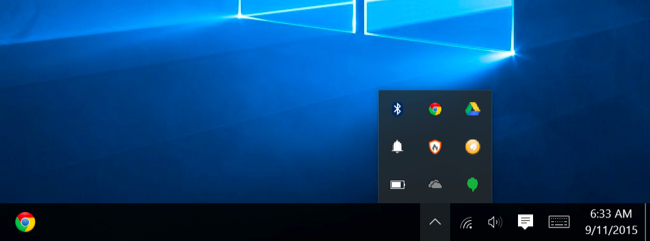
#1 Closing System Tray Programs
 Closing System Tray Programs
Usually, most of the
applications running on your computer appear in the system tray or you can say
notification area. If you spot any of the application running in your system
tray that is unnecessary then you could simply close it! This will surely make
your PC run faster.
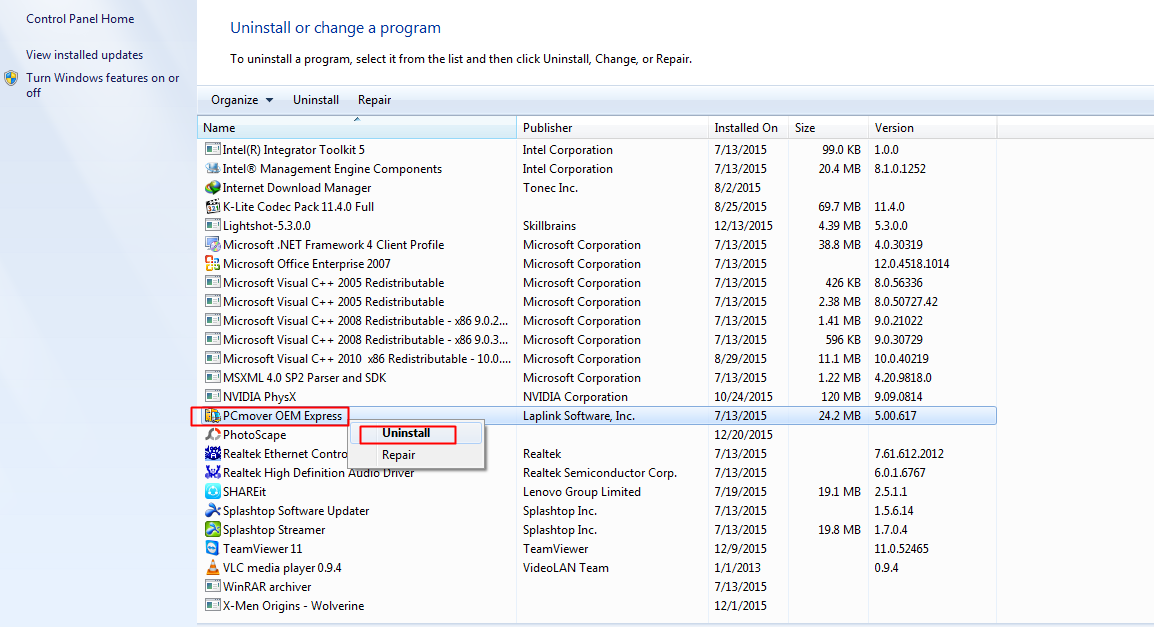
#2 Uninstall unwanted Programs
 Uninstall unwanted Programs
Sometimes programs get
installed on our computer without our command and these programs can affect the
PC speed to a high extent so better is to uninstall this unnecessary program.
By uninstalling these programs, the disk space gets free and this will speed up your computer. For
uninstalling, just go to the control panel and select Program and
Features. Now uninstall the programs which you don’t want on your
computer.
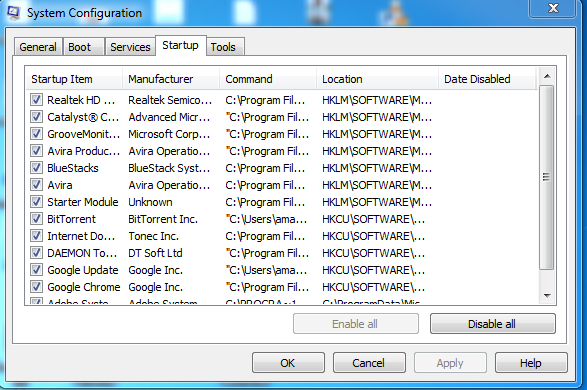
#3 Disabling Startup Programs
 Disabling Startup Programs
Many PC users claim that
their PC starts very slow, the
main reason of that is there are so many startup
programs which are
structured to start when a window is started. These are called as startup
programs. To increase the Computer Speed, just disable the startup
programs. For this, you need to dial “msconfig” without quotation marks
on RUN command and disable the program of your choice. This will
incapacitate all the startup programs and your PC will get boosted.
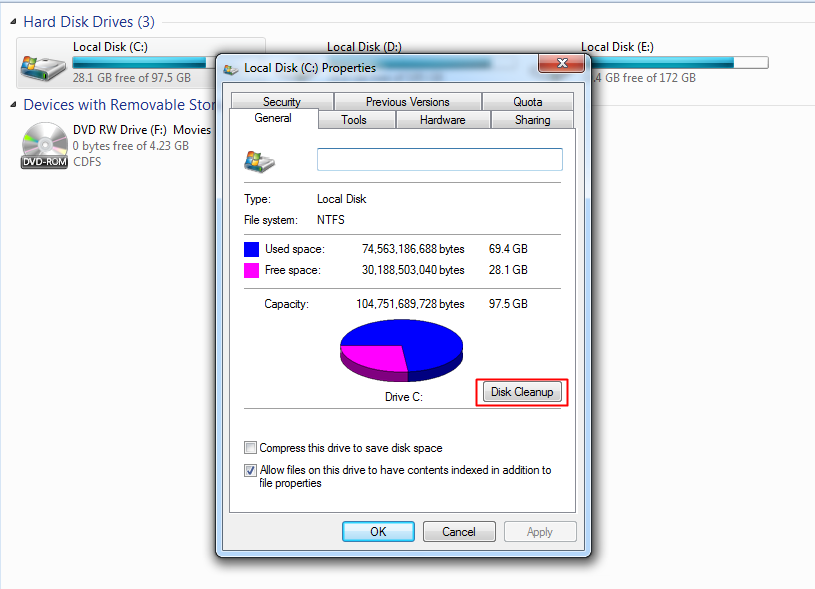
#4 Run Disk CleanUp
 Run Disk CleanUp
Disk CleanUp cleans all the
unwanted cache of a drive. After cleaning, PC gets faster. To cleanup, the disk cache just right
clicks on the C drive and on General tab select Disk Cleanup option and clean
all the cache.
#5 Using third Party Cleanup option
 Using third Party Cleanup option
There is also some software
available on the internet to clean the disk cache. For example CCleaner. This
software cleans up the unwanted space of your computer and cleans all the
unwanted files including cache. And by this PC speeds get faster.
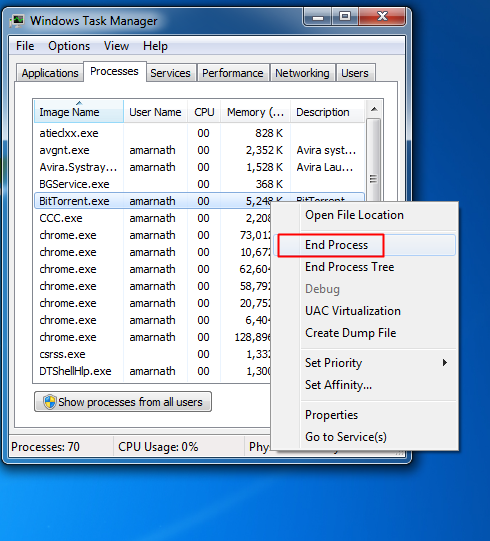
#6 Stop Processes from Task manager
 Stop Processes from Task manager
Task manager is a very
useful feature of windows. You can track each and every process. If any process
gets to dump on your computer or hangs your computer just open the task
manager by pressing ALT+CTRL+DELETE. In this, you can stop any unwanted
process by right-clicking on a process and end
Process it.
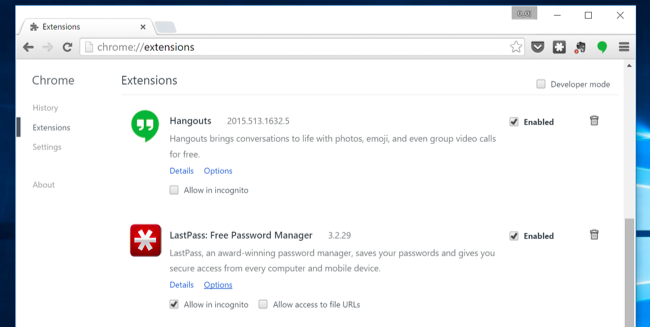
#7 Disable unnecessary extensions on Google Chrome
 Disable unnecessary extensions on Google Chrome
If you noticed that your
Google chrome is running slow! Then you could try disabling the extensions.
Recent studies revealed that Google chrome consume much RAM compared to another
browser. Opera browser could be a handy choice if you are looking to free up
some RAM.
#8 Uninstall Bloatware
 Uninstall Bloatware
Bloatware is pre-installed
apps that come with your device. You can uninstall apps that you no longer
want! You will find lots of bloatware in your program list. You can try some
premium uninstaller to remove stubborn apps.
#9 Turn Off Unused Window Features
 Turn Off Unused Window Features
When you install Windows 7,
Windows 8 and Window 10 with default settings then you install multiple unused
features and services in your system, which normal user never uses these
programs and services in Windows operating system. But you can turn off these
unused features. Follow below steps:
·
Open Control Panel and Click on Uninstall a Program. On the left
side, you will see Turned off Windows Features option and you need to click on
that.
·
Choose one by one program and services you want off on your
windows machine.
#10 Always Update Software From Official Website
 Always Update Software From Official Website
Every software developers
implement an update of their software after a stretch of time. You should
update that software from its official sites only. Because in other sites
this software can update with many deadly viruses which can get into your
computer and make it slow.
#11 Increase RAM via Pendrive
 Increase RAM via Pendrive
You can use USB/pen drive
as ram in Windows 7, 8, 10. You don’t need any third-party app to do so. We
have discussed two working methods in our post How To Increase RAM
Using USB/Pendrive In Windows 8 & 10 that will
help you increase RAM using your Pendrive.
#12 Remove Virus, Malware, and Trojan
 Remove Virus, Malware, and Trojan
Viruses are the most
affecting thing in a computer. Even a single virus can make yourcomputer
very slow. So to avoid this, Download and Install bestPrime Antivirus on your computer and retain it Up to Date.
Make a routine scan of your computer and Clean all the viruses of your
computer. This will make your computer run fast.
#13 Defragment your Hard Drive
 Defragment your Hard Drive
Defragment tools install in
your Windows OS by default, so use this tool and improve your computer
speed. By this, you can defragment your hard drive one by one from
this tool. Defragment process is very manageable and you need to follow some
simple tips, Right click on each drive and select properties and in tool tab
clicks on Defragment now button there.
#14 RESET Your PC
 RESET Your PC
Windows 8, 8.1, 10 comes up
with an option to reset your PC.
Sometimes due to some registry errors, your PC could perform ineffectively!
Therefore, you could try resetting your System. This will work but it takes too
long to complete the whole reset procedure.
#15 Making Best Configuration Of Your Computer
 Making Best Configuration Of Your Computer
Hardware plays an important
role in software workings. Having the best configuration is always the better
option. Therefore, you can Add more RAM chips on your computer to make it fast.

No comments:
Post a Comment